
Branching & Merging in Git
You've now mastered the fundamental local workflow of Git: modifying files, staging them with git add, and saving snapshots with git commit. This is fantastic for tracking your own progress. But what happens when you want to work on a new feature or fix a bug without disrupting the stable, working version of your code?
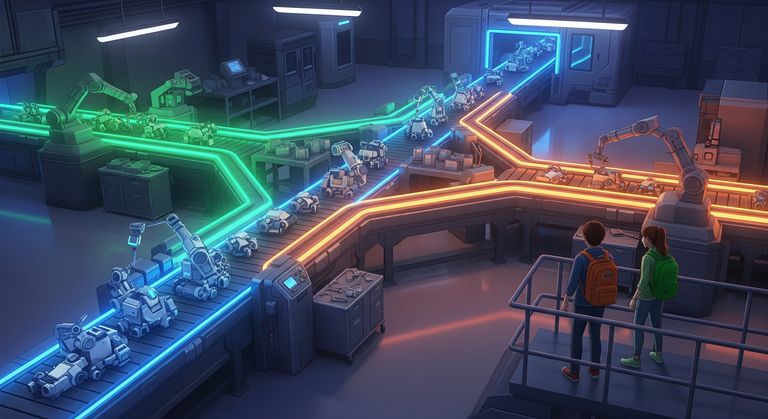
Imagine your main code is a clean, finished highway. You wouldn't start major construction right in the middle of traffic! Instead, you'd build a separate off-ramp and construction road to do your work in isolation. In Git, this concept is called branching.
Branching is arguably Git's most powerful feature, and understanding it is key to working effectively on any modern software team. Let's learn how to create these safe work zones.
What is a Branch – Your Coding Sandbox
A branch in Git is an independent line of development. Think of it as your own personal "sandbox" or a parallel universe for your project. When you create a new branch, you are creating a new pointer that starts from your current commit. As you make new commits on this new branch, that pointer moves forward, but the original branch you came from remains untouched.
The main branch in a repository is typically called main (or master in older projects). This branch is usually reserved for stable, tested, and releasable code.
The beauty of Git's branching model is that it's incredibly lightweight and fast. Creating a new branch doesn't involve copying all your files; it just creates a new small pointer. This encourages a common and highly effective workflow:
- The
mainbranch always contains the stable, production-ready code. - To work on anything new (a feature, a bug fix, an experiment), you create a new branch off of
main(ordevelop– it depends on your project's Git workflow). - You do all your work and make all your commits on this new "feature branch".
- If you make a mistake, you can simply discard the branch without ever harming the stable
mainbranch. - Once your work is complete and tested, you merge your feature branch back into the
mainbranch.
This workflow allows multiple developers to work on different features simultaneously without interfering with each other's work.
Essential Branching Commands in Git
Branching in Git revolves around just a few essential commands. In earlier Git versions, git checkout was the go-to for everything from switching branches to restoring files. But as of Git 2.23, two purpose-specific commands – git switch and git restore – were introduced to make these actions clearer and more intuitive.
Viewing Branches
To list all local branches and see which one you're currently on:
git branchYou'll see an asterisk * next to the active branch:
* main
development
Creating and Switching Branches
To work with branches more clearly, use git switch for navigating and creating branches, and reserve git restore for discarding changes. While git checkout still works, git switch is the recommended approach for branch-related tasks thanks to its clarity.
Two-Step Approach: Create a Branch, Then Switch to It
You can create a branch first and switch to it afterward.
- Modern Way:
# Step 1: Create the branch git branch login-feature # Step 2: Switch to it git switch login-feature - Legacy Way:
# Step 1: Create the branch
git branch login-feature

# Step 2: Switch to it
git checkout login-feature
One-Step Approach: Create and Switch
More commonly, you'll want to create and switch in a single command:
- Modern Way:
# -c stands for "create" git switch -c api-tests - Legacy Way:
# -b stands for "branch"
git checkout -b api-tests
What Happens When You Switch Branches?
Switching branches updates your working directory to match the last commit on that branch. That means files, folder structures, and code content can change instantly – giving you a clean, focused space to work on your task without affecting the rest of the project.
The Feature Branch Workflow in Action
Let's walk through a typical scenario. You have a stable project on the main branch, and you need to add a new login feature.
- First, ensure you are on the main branch. If you were on another branch, you would switch back to it.
(I'll cover pulling the latest changes from remotes in the next lesson).# Switch back to the 'main' branch git switch main - Create and switch to a new branch for your feature. It's good practice to name it descriptively.
# The -c flag creates the new branch and immediately switches to it git switch -c feature/user-login - Now you're in your safe sandbox. Do your work: create new files (e.g.,
LoginPage.cs,LoginTests.cs), modify existing files, etc. - As you complete small, logical chunks of work, save them to your branch's history with
addandcommit.# Add all your changes to staging git add . # Commit the changes to your 'feature/user-login' branch git commit -m "Feat: Add LoginPage class and initial locators"
You can continue this cycle of modifying, adding, and committing as many times as you need. All of this history is being saved on the feature/user-login branch, while the main branch remains untouched and pristine.
Merging Your Work Back – git merge
Once your new feature is complete, tested, and ready to be incorporated into the main project, you need to merge your feature branch back into the main branch.
The merge process integrates the history from your feature branch into the target branch, combining your work.
The Merge Process:
- First, switch back to the branch you want to merge into. This is your target branch, which is typically
main.# Switch to the target branch for the merge git switch main - Next, run the
git mergecommand, specifying the name of the branch you want to merge from.# This command merges the history from 'feature/user-login' into 'main' git merge feature/user-login
Git will perform the merge by finding the common ancestor commit between the two branches and creating a new "merge commit" that combines the histories of both. The main branch now contains all the work from your feature branch!
When Worlds Collide – Understanding Merge Conflicts
Sometimes, a merge isn't automatic. If you worked on a feature branch, and in the meantime, another developer made changes to the exact same lines of code in the main branch, Git won't know which version to keep. It can't read your mind!
When this happens, Git will pause the merge process and report a merge conflict. It will mark the conflicting files with special markers (like <<<<<<< HEAD, =======, and >>>>>>>) to show you exactly where the two different versions clash.
Don't Fear Conflicts!
Seeing a merge conflict for the first time can be intimidating, but they are a normal and expected part of collaborative development. They are not an error; they are simply Git asking you, the human, to make a decision.
Your job is to open the conflicted file(s), look at the marked sections, delete the markers, and edit the file to be the correct final version (which might be a combination of both changes). Once you've resolved the conflicts, you git add the fixed file(s) and run git commit to finalize the merge.
Branch Housekeeping – Renaming & Deleting
Keeping your repository tidy involves more than just merging branches. You might want to rename an active branch to fix a typo or clarify its purpose before it's merged. And after a branch has been successfully merged, it's good practice to delete it to prevent clutter and keep your branch list manageable.
Renaming a Branch
If you're currently on the branch you want to rename, you can use the -m flag (for "move"):
# Assume you are currently on a branch named 'feture/user-login' (with a typo)
# This command renames your current branch to 'feature/user-login'
git branch -m feature/user-login
If you want to rename a different branch while you are on another one, you provide both the old name and the new name:
# Renames 'old-branch-name' to 'new-branch-name' even if you're not on it
git branch -m old-branch-name new-branch-name
Deleting a Branch
Once a feature branch has been successfully merged into your main branch, it's no longer needed and should be deleted to keep your repository clean. You use the -d (lowercase "d" for "delete") flag for this. This is a "safe" delete operation; Git will prevent you from deleting a branch that has unmerged changes.
# First, merge your feature branch into main
git switch main
git merge feature/user-login

# Then, safely delete the feature branch
git branch -d feature/user-login
In rare cases where you want to force the deletion of a branch and discard all its changes (e.g., you made a mistake and want to abandon the work), you can use a capital -D flag. Be very careful with this command, as it can lead to losing work permanently!
# Force delete a branch and all its commits that haven't been merged
git branch -D abandoned-feature
Keeping your local branch list tidy by deleting merged branches is a great habit to get into.
Key Takeaways
- Branching is Git's core feature for working on different lines of development in parallel, providing a safe sandbox for new features and bug fixes.
- The primary branch is usually named
mainand should contain your stable, production-ready code. - Use
git switch -c <branch-name>to create and switch to a new branch, which is the modern and recommended approach. - Use
git switch <branch-name>to switch between existing branches. - After completing your work on a feature branch, you switch back to the main branch and use
git merge <feature-name>to integrate your changes. - It's good practice to clean up merged branches using
git branch -d <branch-name>for safe deletion. - A merge conflict occurs when Git cannot automatically combine changes because the same lines were edited on both branches; this requires manual resolution.
Branching Out Your Knowledge
- Pro Git Book: Branches in a Nutshell The official book's excellent introduction to the concepts behind Git branching.
- Atlassian: Using Branches A very clear tutorial on the branching workflow, including merging.
- Learn Git Branching (Interactive) An amazing, interactive, hands-on tutorial for visualizing and practicing Git commands right in your browser.